How it works
A delivery day in EZtms, in five steps
Set up once, add the day’s deliveries and plan the runs. Your drivers and recipients see the rest. Every picture below is the real screen.
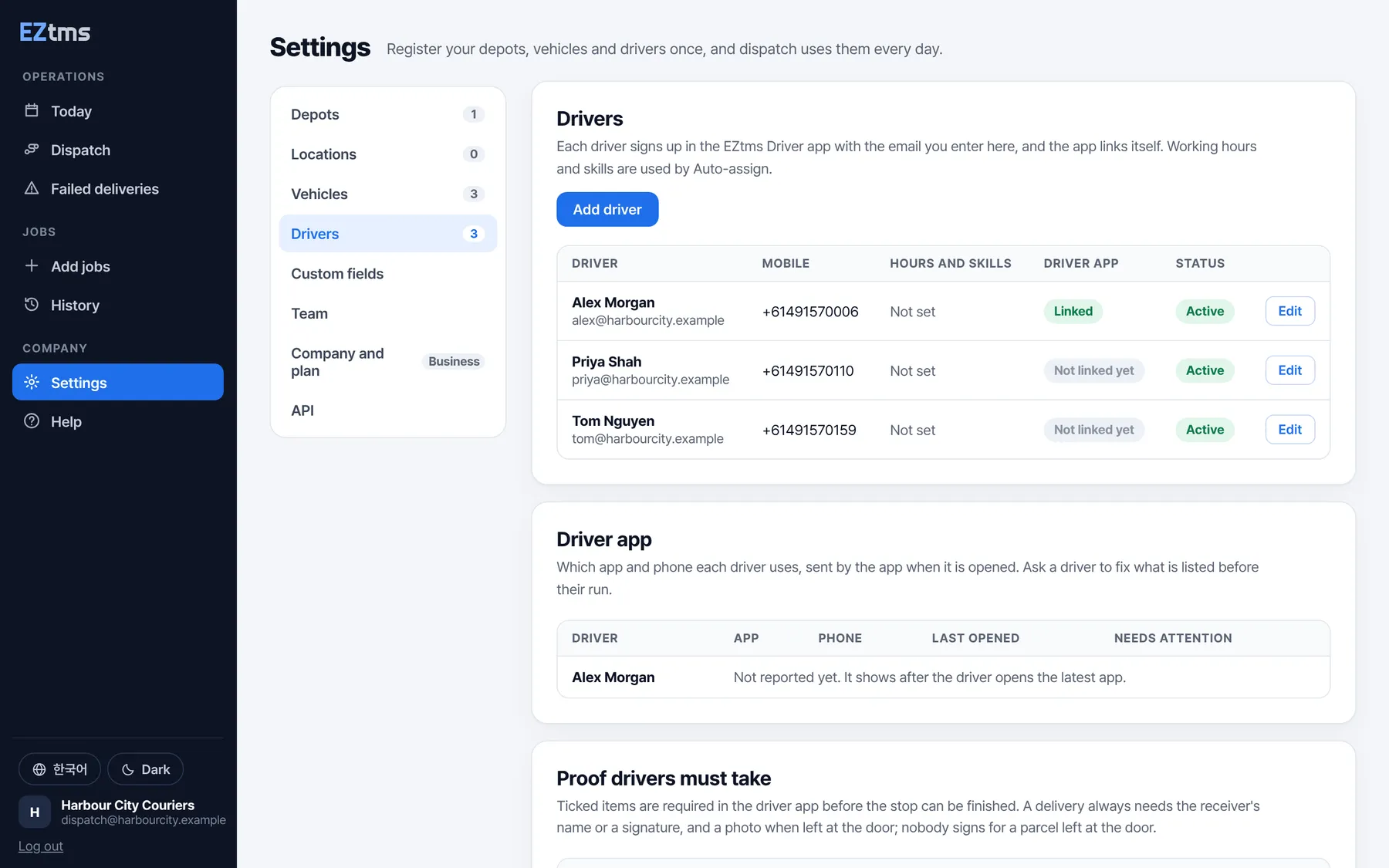
Set up once
Register where your drivers set off from, the vehicles you send out, and your drivers. Dispatch uses them every day.
- Depots: where runs start and parcels are loaded
- Vehicles: load limits and equipment such as a tail lift
- Drivers: each one signs up in the driver app with the email you enter
Add the day’s deliveries
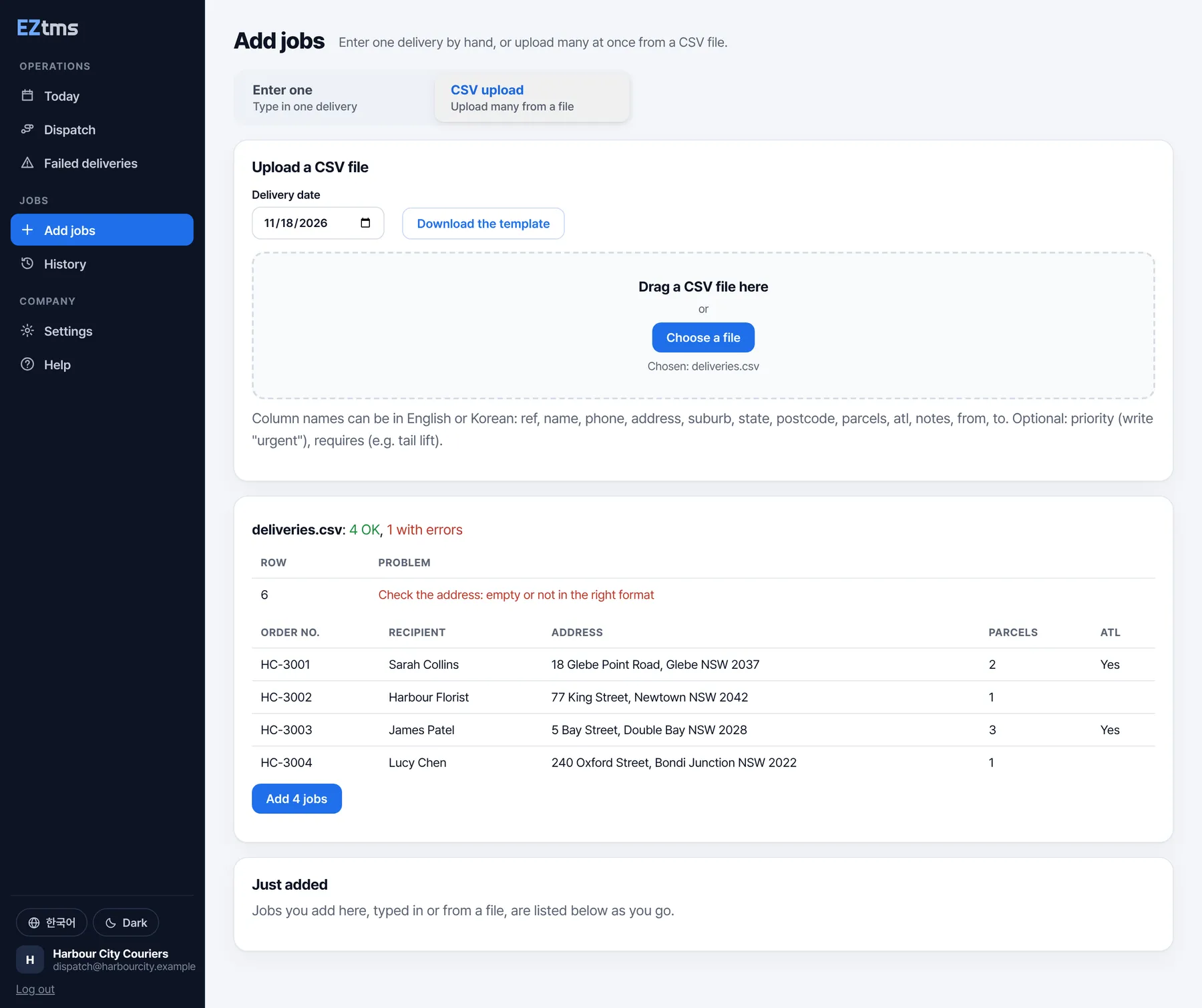
Type a delivery in, or upload many at once from a CSV file. Every row is checked before it is saved, and a row with a problem is shown with what to fix.
- A CSV template to download and fill in
- Time windows, parcels, notes for the driver, leave-at-door consent
- Orders already in the system are skipped, not doubled
Plan the runs and send them
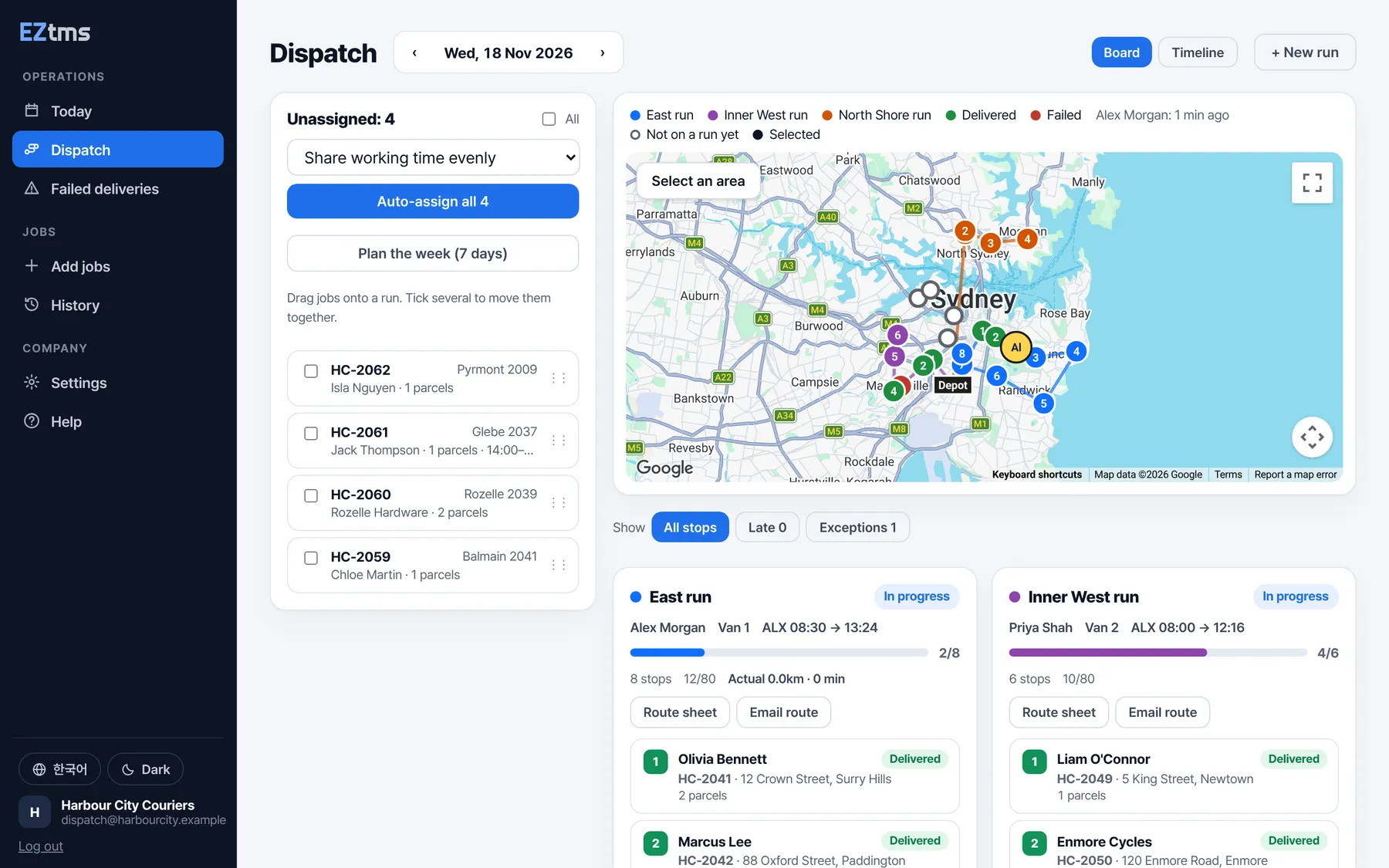
Make one run for each driver, then let Auto-assign share the jobs out, or drag them onto a run yourself. The map and the arrival times follow as you go.
- Time windows, driver hours and breaks, and vehicle limits are kept
- A warning when a stop would be late or a vehicle is over its limit
- Send to driver puts the run on the driver’s phone at once
Drivers deliver with the app
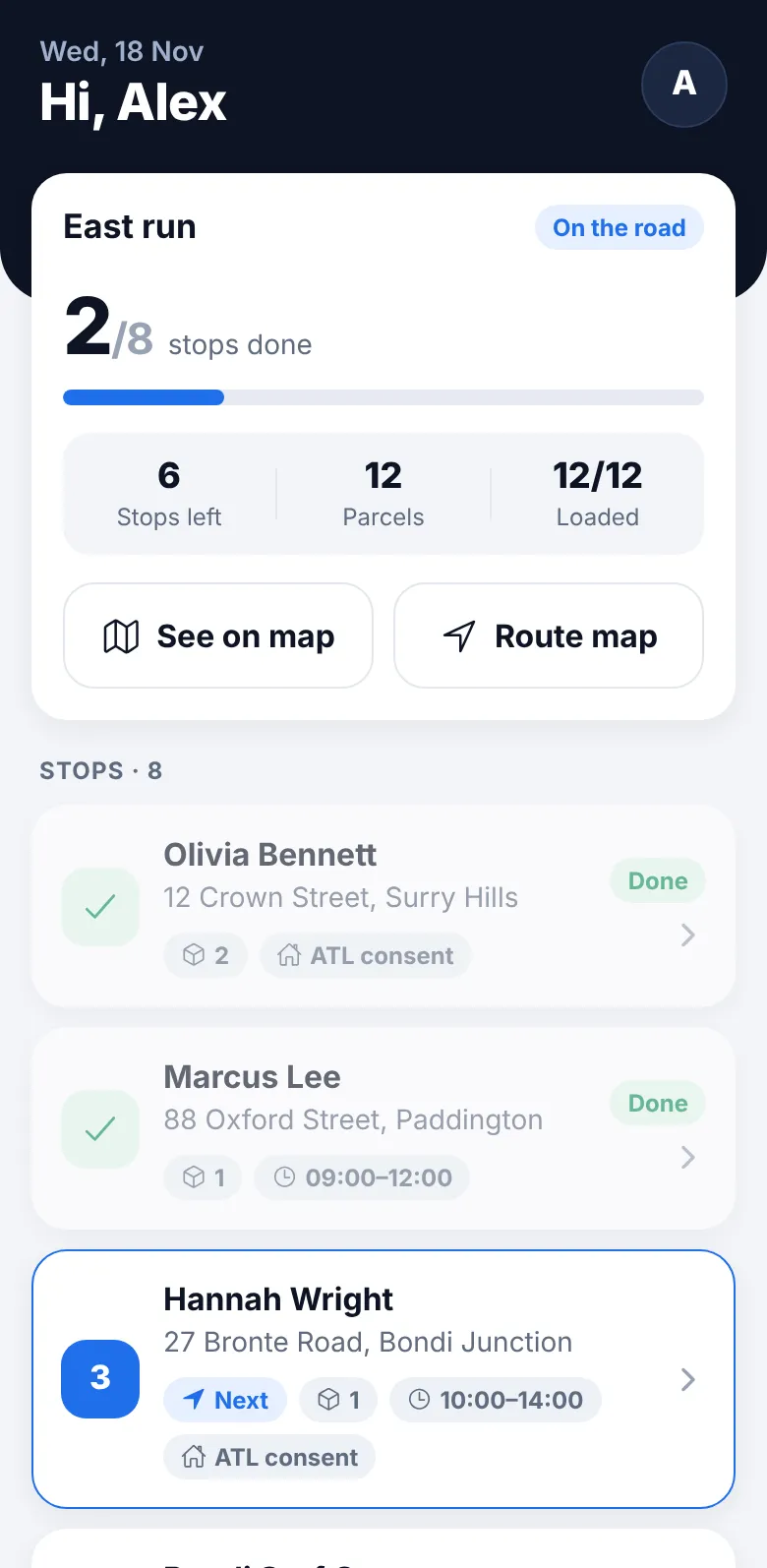
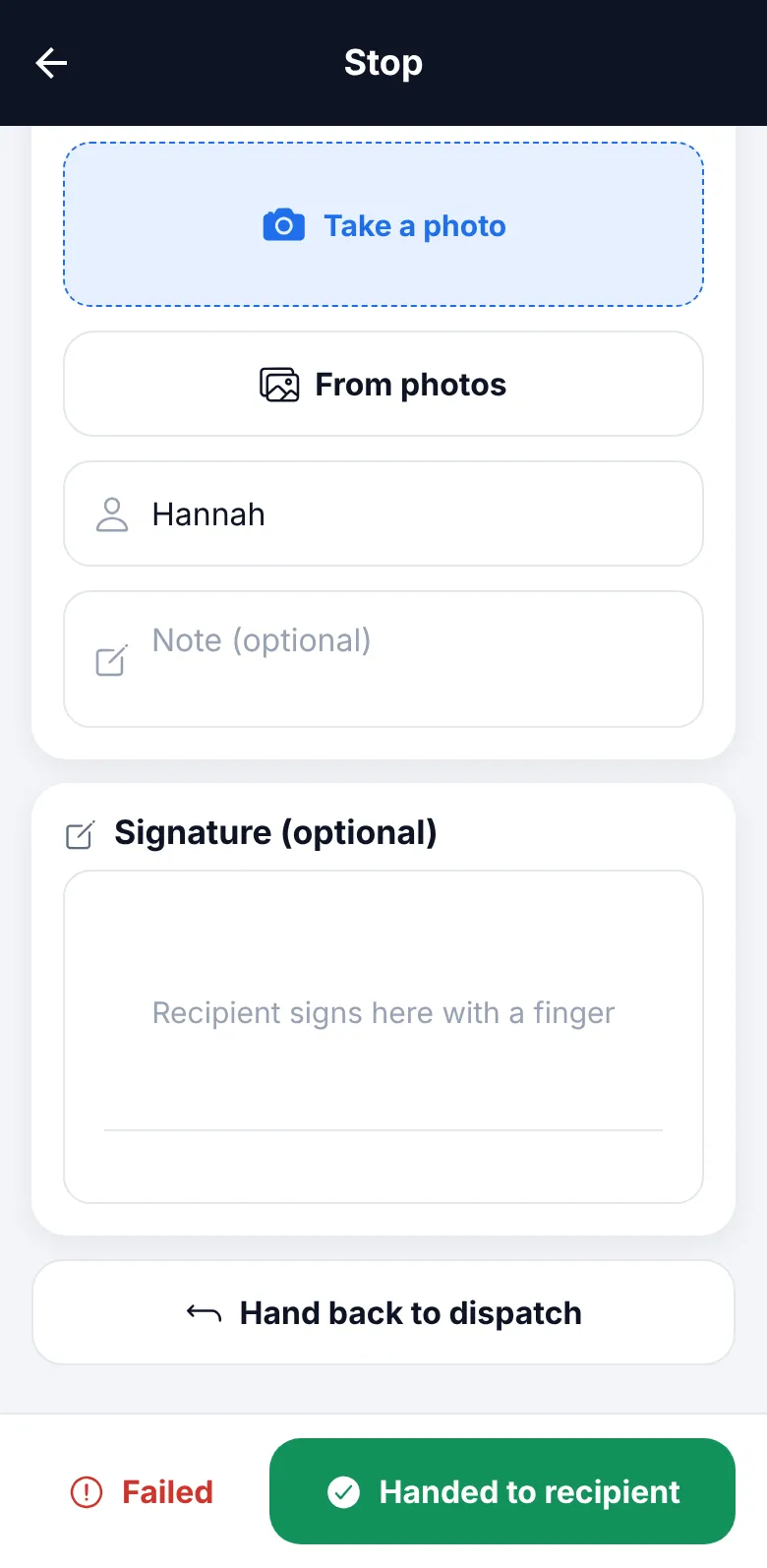
The driver sees the day’s stops in order, scans parcels onto the van, opens directions in their own map app, and records each delivery.
- Photos, the name of who received it, and a signature
- Left at the door only where the recipient agreed
- Keeps working without signal and sends when it returns
EZtms Driver is being prepared for release on the App Store and Google Play.
Follow the day and close it out
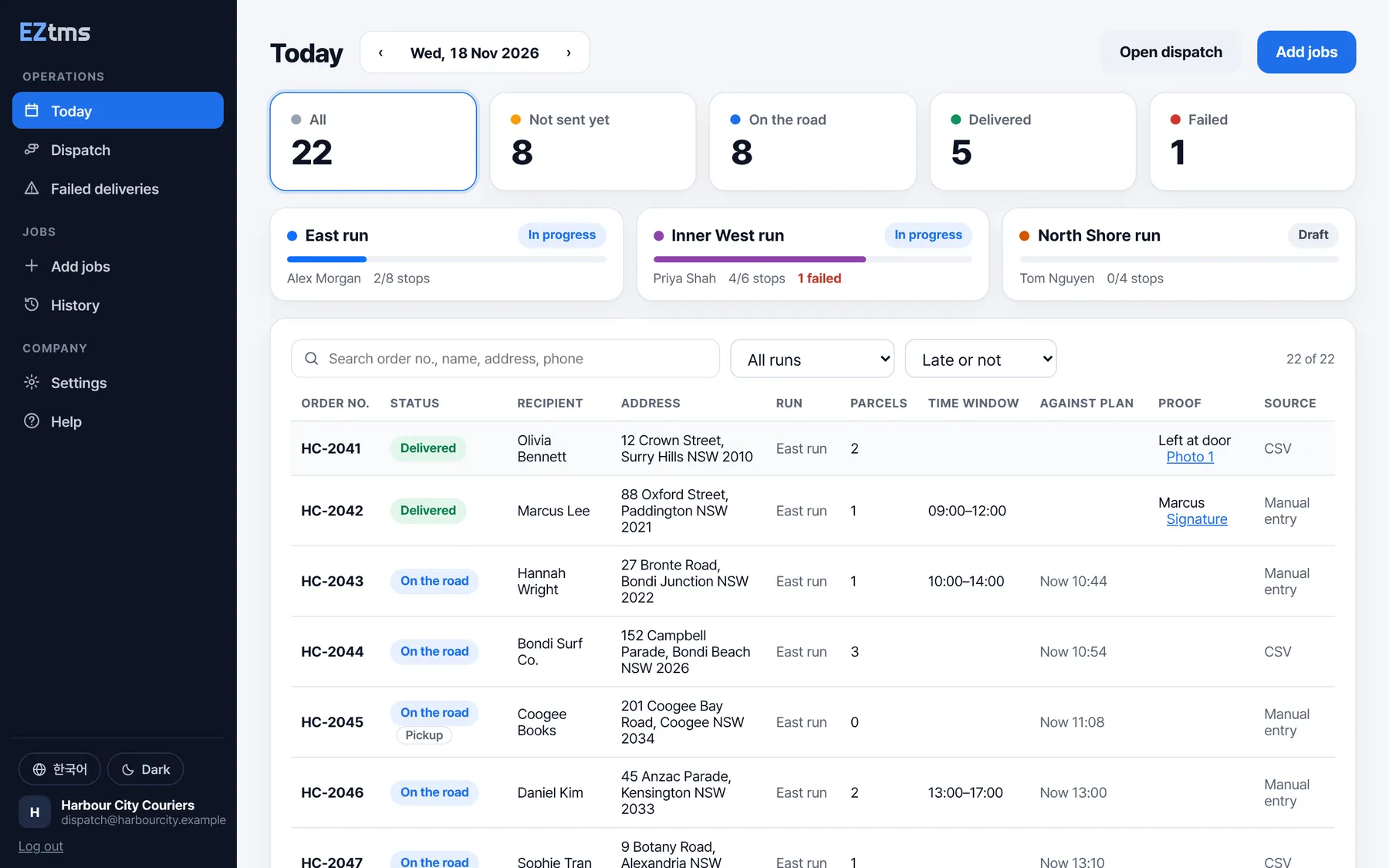
Today shows every run and delivery as it happens. Recipients get a tracking link, failed deliveries wait for your decision, and History gives you the numbers for any period.
- Recipients: email updates with a tracking link, and SMS after you subscribe
- Failed deliveries: redeliver on another day, or record a return to the depot
- History: results by driver, reasons for failure, CSV download
The full manual is inside
After you sign in, Help in the menu walks through every screen step by step, with a picture for each step: settings, the CSV columns, dispatch and the driver app.
14-day free trial · No card needed to start